Intelligent Collision-Free Label Placement
Articles
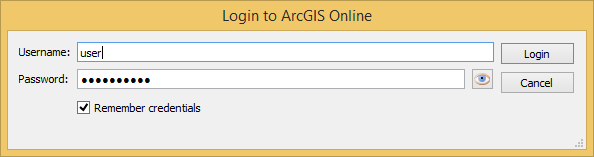
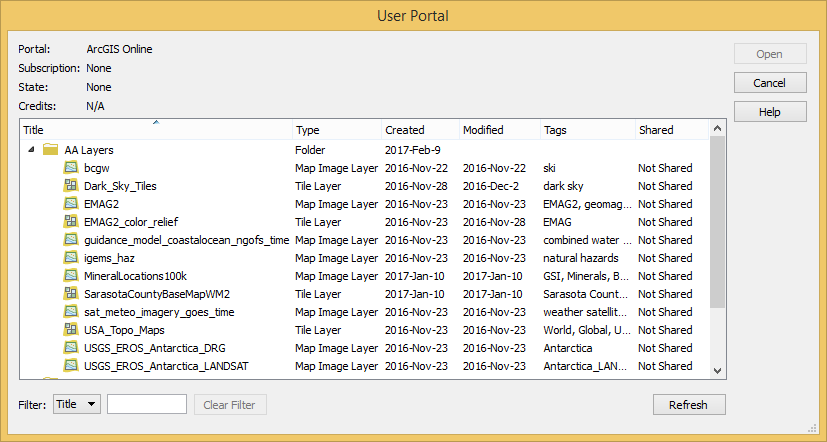
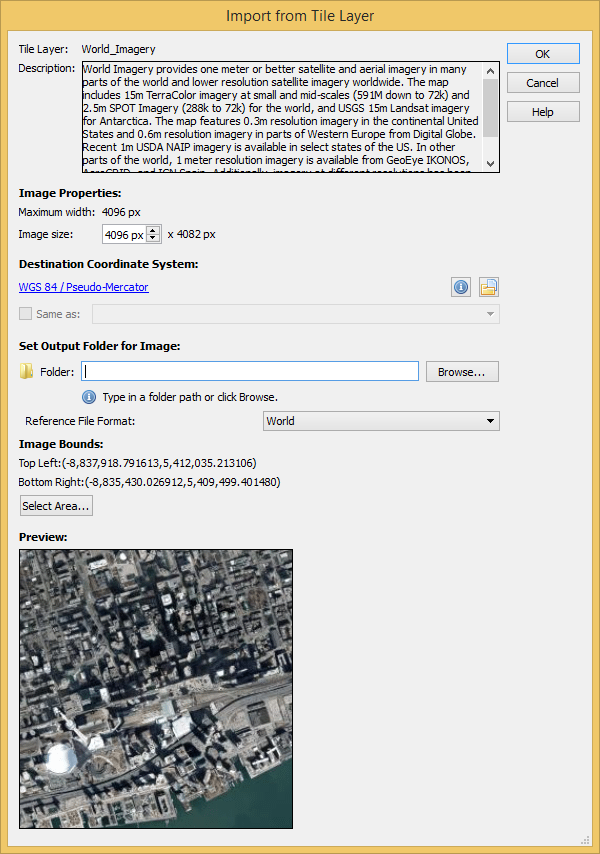
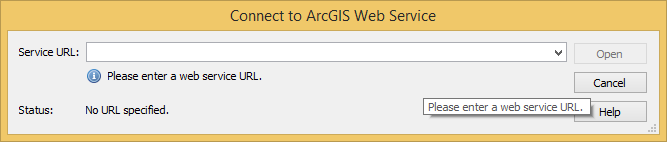
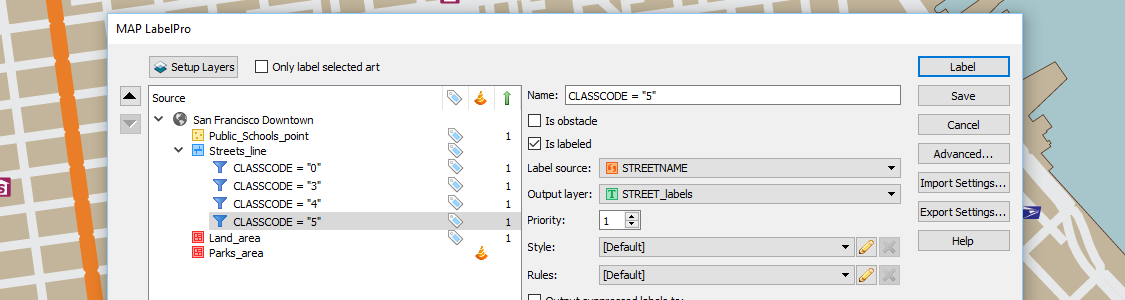
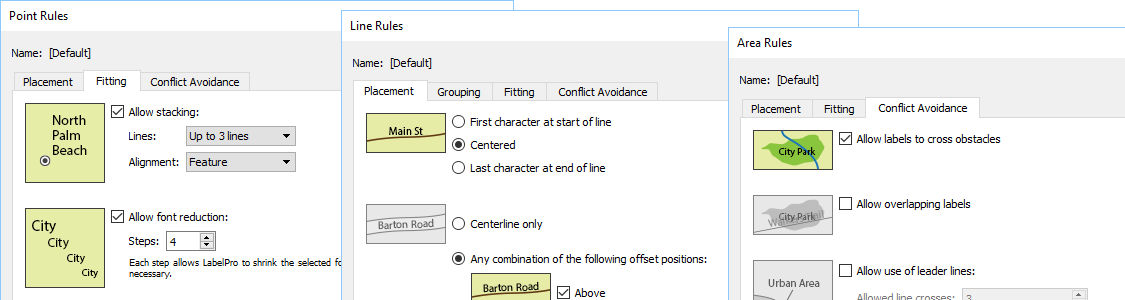
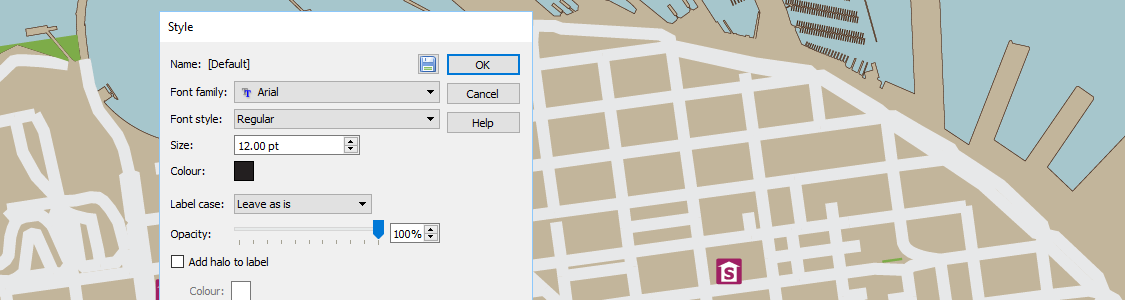
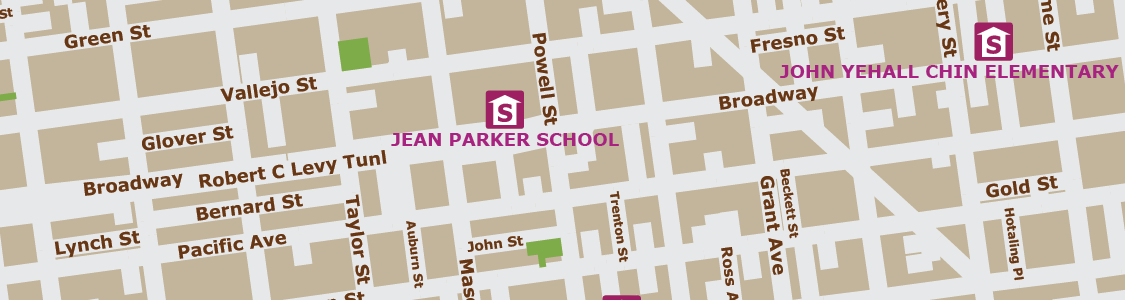
Configure which MAP Layers will be labeled and which layers will be denoted as obstacles. Obstacles are map objects that are included in the conflict resolution decision making process that must be avoided when trying to place a label. MAP LabelPro dialog box displays all MAP Layers, label settings, and control in an easy to use interface. MAPublisher LabelPro provides users with an intuitive graphical interface for setting up labeling rules. Each Point, Line and Area rule dialog box has numerous label placement options for a high level of label detail and a variety of configurations. Pre-defined default rules are a good starting point out of the box, however customization can make your labeling even better. Maintain label consistency with MAPublisher LabelPro styles. Customize label sizes, fonts and colour. Line styles may also include symbols such as road or highway shields. Save style files and share them to maintain consistency across multiple user projects. Verify that labels were successfully placed in accordance to the MAPublisher LabelPro configuartion—and placed in either Destination or Supression layers. If no Suppression layer is available, non-compliant text is ignored and is not generated. Once placed, the labels are considered standard text and may be modified using Adobe Illustrator or MAPublisher operations. MAPublisher® LabelPro™ labeling is fast, efficient and customizable. Save countless hours of tedious post-labeling refinement of your map labels. It is the best cartographic labeling engine that offers a complete rule-based system for collision-free text placement in Adobe Illustrator. Batch generate Label Filters to create multiple filters with only a few clicks. Automatically add leader lines for small features. Stack long, one-line labels into multi-line labels. Automatically reduce font sizes for better fitment. Achieve high-quality labels on curved line features. Fine tune label placement around points. And much more… Save styles and rules to a file for future use or to share with multiple users across a network or across the country. Importing them is easy as dropping them into a MAPublisher LabelPro settings folder. Easily manage license options including commercial, academic, multi-user and floating. Empower multiple users on a network with cost effective network or floating licenses. With the latest release of Geographic Imager 5.2, it’s now possible to easily import images directly from an ArcGIS Online account or an ArcGIS web service. This will allow you to use shared data within your ArcGIS Online organizational account and connect to publicly available map servers from various online sources. ArcGIS Online is a collaborative web GIS that allows you to store and share GIS data using Esri’s secure cloud. Before, you may have had to download raster layers to your local machine and then import them into Adobe Photoshop using Geographic Imager. Now, Geographic Imager has a much-improved workflow to get ArcGIS Online image layers into Adobe Photoshop with full georeferencing. Currently, the types of datasets allowed are Map Image Layers and Tile Layers. To load a layer, open Advanced Import and select ArcGIS Online from the Format drop-down list. Enter the credentials for your ArcGIS Online account and select an image layer from your user portal. Images can be resized and transformed on import. To extract a specific area from the image, click Select Area. The interface is the same as the one used for WMS Import. In addition to using your own organization’s data, you can connect to publicly available data from a wide variety of organizations by connecting to an ArcGIS Web Service. To connect to a web service, use Advanced Import and select ArcGIS Web Service from the Format drop-down menu. Click Browse and enter the URL for the service. This is a great option when searching for data from open data portals created by government agencies.
Configuration
Rules
Styles
Results
Save Time
Intelligent Labeling
Share Settings
License Management
Use Geographic Imager to Import Imagery from ArcGIS Online Directly Into Adobe Photoshop